10 AI Tools Every Professional Should Know in 2026 (And How to Learn Them Fast)
Your colleague just cut a 4-hour task down to 20 minutes. They used ChatGPT. They did not tell anyone.
This is happening everywhere right now, quietly. A study from HubSpot's 2026 State of Marketing report found that using AI to handle daily work tasks ranked as the single top trend cited by nearly half of professionals surveyed. The people who are doing it are not talking about it much. They are just moving faster.
The good news is that "using AI at work" does not mean learning to code or getting an ML certification. It means knowing ten tools. That is it. Ten tools, each with a specific job, each learnable in a weekend if you know where to start.
I put this list together for working professionals who want to stop feeling behind and start actually using AI as a daily advantage. For each tool, I will tell you what it does, who needs it most, whether there is a free version, and the fastest honest path to getting competent
1. ChatGPT — OpenAI · Free / Plus at $20/month
ChatGPT is the most-used AI tool on the planet and the right place for most professionals to start. It handles writing, research, summarization, brainstorming, and basic coding in a single interface, and it does all of them well enough that 800 million people use it every week as of 2026.
What it actually does: you type a question or instruction, it responds in natural language. The magic is in how you phrase the instruction. A vague prompt gives a vague answer. A precise prompt with context gives a genuinely useful one. This is why learning prompt engineering — even the basics — makes ChatGPT ten times more useful than just asking it things casually.
Best for: writers, marketers, PMs, analysts, anyone who produces text or needs to think through problems faster. If your job involves email, reports, presentations, or any kind of written output, ChatGPT will save you time from the first week.
Free tier: Yes. The free tier is genuinely useful. GPT-4o is available on the free plan with usage limits. The Plus plan at $20/month removes the limits and adds file uploads, web search, and advanced reasoning.
Start by doing your actual work inside ChatGPT. Write your next email draft there. Summarize a document. Ask it to review something you wrote. The learning curve is mostly about discovering what it is good and bad at — and that only comes from using it on real tasks, not from tutorials.
What you need to understand to use it well: how tokens work, why context in the prompt matters, and why it sometimes confidently generates wrong information. Knowing the mechanism, not just the interface, is what separates casual users from people who actually get consistent results. The Unrot blog on what large language models are explains this in about 5 minutes.
2. Perplexity — Perplexity AI · Free / Pro at $20/month
Perplexity is what you use when you need real-time information with sources attached. Think of it as Google Search rebuilt for the way people actually want answers — you ask a question in natural language and get a synthesized, cited response instead of a list of links to click through.
Best for: researchers, journalists, consultants, students, anyone who spends significant time finding and verifying information. If you regularly read industry reports, news, or research papers to stay current, Perplexity compresses that workflow dramatically.
I use Perplexity every time I need to understand a topic quickly and still be able to verify the source. The citations are shown inline. You can click through to the original article. It is the tool that has most replaced my default Google searches for research tasks.
Free tier: Yes, and the free tier is excellent for most professionals. The Pro plan adds deeper research modes and access to more powerful underlying models.
It works like search — you already know how to use it. The only thing to learn is how to phrase research questions well, which is the same skill that makes ChatGPT more useful. No technical knowledge required.
3. Claude — Anthropic · Free / Pro at $20/month
Claude is the AI tool I reach for when the task involves a long document, complex reasoning, or anything where I need the AI to maintain context across many pages. Claude Opus 4 supports a 200,000-token context window, which means it can read and reason across roughly 150,000 words in a single session. No other consumer AI tool comes close to that.
Best for: lawyers, consultants, analysts, developers, and anyone who regularly works with long contracts, reports, or codebases. If you have ever copy-pasted a 50-page document into ChatGPT only to get cut-off results, Claude is the answer.
Claude also tends to be more careful than ChatGPT about admitting when it does not know something. I find this particularly useful when I need analysis I can actually trust rather than confident-sounding output I still have to verify.
Free tier: Yes, with usage limits. The Pro plan provides priority access and higher usage.
Use it on your longest, most complex tasks first. Feed it a full report and ask it to identify key risks. Paste in a lengthy email thread and ask it to summarize the decision points. The long-context capability is its single biggest advantage.
4. Gemini — Google DeepMind · Free / Advanced at $20/month
Gemini is Google's AI model family, and its biggest advantage is deep integration with the Google Workspace tools most professionals already live inside — Docs, Sheets, Gmail, and Meet. If your company runs on Google, Gemini is not an add-on. It is already inside your workflow.
Best for: anyone who uses Google Workspace daily, particularly PMs who work in Docs and Slides, and analysts who work in Sheets. Gemini in Sheets can generate formulas from plain-language descriptions. Gemini in Docs can draft, restructure, or summarize with one click. These are real time-savers.
Gemini 2.5 Pro is also genuinely multimodal — it processes text, images, audio, video, and code. If your work involves analyzing visual content or working across media types, it is worth knowing what it can handle.
Free tier: Yes. Gemini is available free at gemini.google.com. Workspace integration is rolling out to Google One subscribers.
Start inside Google Docs or Gmail if you already use them. Click the Gemini icon, ask it to draft something, and see what it produces. Integration-based tools have the lowest learning curve because you never leave the app you already know.
5. Grammarly — Grammarly Inc. · Free / Premium at $12/month
Grammarly has been around since 2009 and at this point serves more than 30 million users and 70,000 professional teams globally. Its 2026 version is a significant step beyond grammar checking — it now rewrites paragraphs, adjusts tone, suggests clearer phrasing, and generates text with prompts. It works across Gmail, Google Docs, Slack, LinkedIn, and most other tools professionals use to write.
Best for: anyone who writes at work, which in 2026 means virtually everyone. Grammarly is particularly valuable for non-native English speakers who need confidence in professional communication, and for anyone sending high-stakes emails or client-facing documents.
The free tier catches grammar and spelling errors. The premium tier is where the real value kicks in — full rewrites, tone adjustments, and document-level clarity scores.
This is the closest thing on this list to a tool that is genuinely plug-and-play. No prompting, no learning curve — you write and it suggests. The main learning is figuring out which suggestions to accept versus override, which takes about a week of habitual use.
6. Notion AI — Notion · Included with paid Notion plans / $10/month add-on on free plan
Notion AI is embedded inside Notion's workspace, which makes it immediately useful for anyone who already manages notes, projects, or documentation there. You can ask it to summarize meeting notes, generate a project brief, fill in a template, or turn rough bullet points into a polished document without leaving the page you are already on.
Best for: PMs, team leads, writers, and anyone who lives in Notion for project management or knowledge work. The combination of structured workspace and AI that understands the context of that workspace is genuinely more useful than using a standalone AI tool for the same tasks.
The templating and database integration is what sets Notion AI apart. You can build a repeating process — weekly project updates, meeting summaries, status reports — and have AI fill in the structure from your actual notes.
If you already use Notion, enable Notion AI and spend one day using it on every note and document you touch. If you do not use Notion yet, this might not be the right entry point — start with ChatGPT first and come back to Notion AI once you have a clearer sense of where AI fits in your workflow.
7. Canva AI — Canva · Free / Pro at $15/month
Canva has 220 million monthly active users as of 2026. The AI features built into the 2026 version have made it legitimately powerful for professionals who are not designers but regularly need to produce visual content — presentations, social graphics, reports, pitch decks.
Best for: marketers, HR professionals, team leads, consultants, and anyone who needs to create visual documents without a design background. Canva AI can generate images from text prompts, resize designs for different formats in one click, remove backgrounds, and use Magic Write to generate presentation copy.
The "Text to Image" and "Magic Design" features are the most practically useful for professionals. You describe what you want, it generates a starting point, you adjust. The time savings on presentations alone are significant.
Start with a presentation you actually need to make. Use Canva's presentation templates and let Magic Write draft the slide copy. Fix what the AI gets wrong. After two or three real projects, you will have a reliable workflow.
8. Otter.ai — Otter.ai Inc. · Free / Pro at $17/month
Otter.ai transcribes meetings in real time, identifies speakers, generates summaries, and produces action items automatically. If you are in a lot of meetings — and in most professional roles in 2026, you are — Otter removes the cognitive load of taking notes while trying to pay attention at the same time.
Best for: anyone in a meeting-heavy role: PMs, team leads, salespeople, consultants, researchers conducting interviews. The integration with Zoom, Google Meet, and Microsoft Teams means it works with however your team already meets.
The summary and action item extraction is where Otter earns its place. After the meeting, you get a structured document with the key decisions, the open questions, and the next steps — without having to write them yourself. I have not taken manual meeting notes in over a year.
Free tier: Yes, with limited meeting minutes per month. The Pro plan provides unlimited transcription.
Connect Otter to your calendar and let it join your next meeting automatically. Review the transcript and summary afterward. Adjust how you read and use the output over the next week. That is the entire learning process.
9. Cursor — Anysphere · Free / Pro at $20/month
Cursor is an AI-native code editor that can write, explain, debug, and refactor code across your entire codebase — not just one file at a time. It is built on VS Code, which means if you already use VS Code, switching to Cursor is nearly frictionless.
Best for: software engineers, data analysts, technical PMs, and anyone who writes code regularly. If you are non-technical but want to start using code to automate tasks or analyze data, Cursor significantly lowers the barrier.
What separates Cursor from GitHub Copilot or simply using ChatGPT for code is that Cursor understands the full context of your project. You can tell it to "add error handling to all the API calls in this codebase" and it will make the changes across multiple files coherently.
Free tier: Yes, with limited AI completions. The Pro plan provides unlimited AI usage.
If you are an engineer, install it and use it on your next real project. The learning curve is mainly in trusting it with larger tasks — start with smaller refactors and build up from there. If you are non-technical, start with something simpler like a Python script to automate a repetitive file task.
10. Zapier — Zapier Inc. · Free / Starter at $20/month
Zapier connects 8,000+ apps and lets you build automated workflows between them, and its 2026 AI features have made this significantly more accessible to non-technical users. You can now describe what you want to automate in plain English — "when I get an email with an invoice attachment, save it to Google Drive and log it in my spreadsheet" — and Zapier's Copilot builds the automation for you.
Best for: operations professionals, marketers, founders, and anyone who has repetitive multi-app tasks that eat time every week. The more apps you use at work, the more Zapier is worth learning.
I automated three workflows in my first week of using Zapier seriously. Lead notifications from email into a Notion database. New form submissions into a Slack channel. CSV exports from one tool into formatted rows in a spreadsheet. None of these required any code. The time savings compounded quickly.
Free tier: Yes, with up to 100 tasks per month. The Starter plan at $20/month provides 750 tasks.
Identify one task you do manually more than three times a week. Build a Zap for it using the Copilot feature. Once that works, build a second one. The compounding effect of automation becomes visible quickly, and that visibility is the best teacher.
Which Tool Should You Start With?
Here is the honest answer nobody puts in these lists: it depends on your actual job. Not your general interest in AI, not what your favourite tech newsletter recommends, your specific daily work.
Start with whichever tool maps to the task that eats the most of your time each week. If writing eats your time, start with ChatGPT or Grammarly. If research does, start with Perplexity. If meetings do, start with Otter. If your job is mostly code, start with Cursor.
The mistake most people make is picking the most-hyped tool and learning it in the abstract. You get good at AI tools by using them on real problems, not by watching demos.
One framework that works:
Pick one tool.
Use it every day for two weeks on actual work, not practice exercises.
Only add a second tool once the first one is genuinely saving you time.
You do not need all ten of these tools. Most professionals get 80% of the value from two or three that match their workflow. The goal is depth on a small number of tools, not surface-level familiarity with everything.
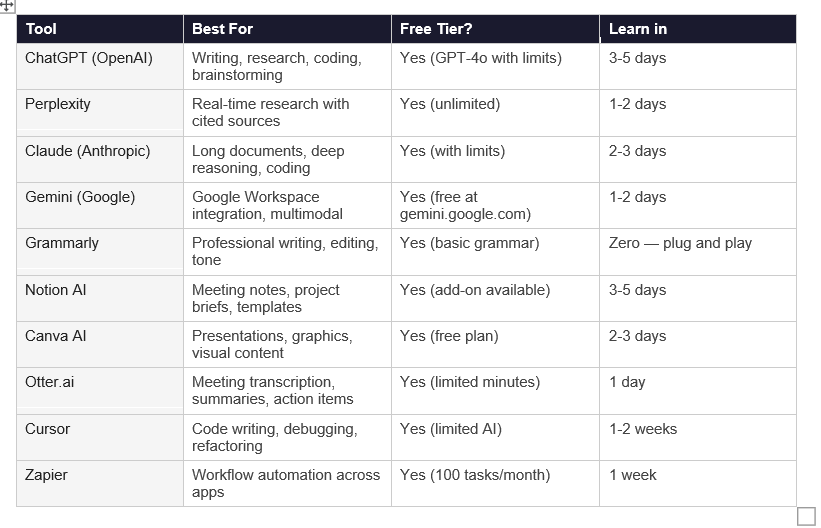
Full Comparison Table: 10 AI Tools for Professionals
Frequently Asked Questions
Q: Which AI tools should every employee know in 2026?
Every professional should know at least ChatGPT (for writing and general tasks), Perplexity (for research), and Grammarly (for written communication). Beyond these three, the right tools depend heavily on role: PMs need Notion AI and Otter.ai, engineers need Cursor, marketers need Canva AI, and operations professionals need Zapier. Knowing three to five tools deeply is more valuable than having surface-level familiarity with all ten.
Q: What are the best free AI tools for professionals in 2026?
The best genuinely free AI tools for professionals in 2026 are ChatGPT (free tier with GPT-4o), Perplexity (free with unlimited queries), Gemini (free at gemini.google.com), Grammarly (free for grammar and spelling), and Canva (free plan with basic AI features). None of these require a paid subscription to start getting real value. Otter.ai also has a free tier with 300 minutes per month of transcription.
Q: How long does it take to learn AI tools?
Most AI tools reach basic proficiency within one to five days of daily use on real tasks. Grammarly requires almost no learning curve. ChatGPT, Perplexity, and Gemini take one to three days. Notion AI, Canva, and Otter take two to five days. Cursor and Zapier take one to two weeks because they require understanding how your existing systems connect. The key variable is whether you practice on actual work or artificial exercises — real tasks accelerate learning dramatically.
Q: What AI tools should I add to my resume in 2026?
Recruiters in 2026 look for specific tool proficiency rather than generic "AI skills." The tools worth adding to your resume are: ChatGPT (specify the use cases — writing, analysis, coding), Cursor or GitHub Copilot (for technical roles), Zapier (for operations and marketing roles), Notion AI (for PMs and team leads), and any role-specific tool you can demonstrate with results. Vague claims like "proficient in AI" carry less weight than "used Cursor to reduce code review time by 30%."
Q: Is ChatGPT the best AI tool for professionals in 2026?
ChatGPT is the most versatile AI tool and the right starting point for most professionals. However, "best" depends on your specific tasks. For real-time research with cited sources, Perplexity outperforms ChatGPT. For very long documents, Claude is more reliable. For professionals inside the Google ecosystem, Gemini offers better integration. For code-heavy work, Cursor is more capable. ChatGPT excels at general-purpose tasks and has the most developed ecosystem of plugins and integrations.
Q: How can I use AI tools at work without getting in trouble?
Three principles keep AI tool use professional and safe. First, never paste confidential company data, client information, or personally identifiable data into a third-party AI tool without checking your company's data policy. Second, always review and verify AI-generated output before sending or publishing it. Third, disclose AI use where your company or industry has disclosure norms. Most organizations in 2026 have AI acceptable use policies — read yours before you start. When in doubt, use AI to assist and draft, not to produce final outputs without review.
Q: What AI tools should Indian professionals learn first in 2026?
Indian professionals should prioritize the free-tier tools that deliver immediate productivity value without subscription costs: ChatGPT (free plan), Perplexity (free, no limits), Gemini (free, integrates with the Google Workspace most Indian teams use), and Grammarly (free basic tier). For career advancement specifically, proficiency in ChatGPT and Cursor is what most Indian tech companies are looking for in hiring in 2026. Prompt engineering — knowing how to get better results from any AI tool — is the single skill that compounds across all of them.
Q: What is the difference between ChatGPT, Claude, and Gemini?
ChatGPT from OpenAI is the most versatile and widely integrated. Claude from Anthropic has the longest context window (200,000 tokens) and is better for long documents and careful reasoning. Gemini from Google is best for professionals inside Google Workspace and for multimodal tasks involving images and audio. For most everyday professional tasks the quality gap between them is smaller than people assume — the bigger difference is in the specific use cases where each one shines.
Recommended Blogs
If this post was useful, these are the natural next reads:
How to Learn AI From Scratch in 2026: The Only Roadmap You Need
What Is a Large Language Model? Explained Simply
The Faster Way to Actually Get Good at These Tools
Knowing which tools exist is step one. Understanding how they work — why prompts matter, why context windows limit what AI can do, why it sometimes gets things wrong — is what turns casual use into a real competitive advantage.
Unrot teaches one AI concept every day, in five minutes. Start with Day 1 free — no commitment, no course, no jargon.
References
HubSpot -- State of Marketing 2026 Report
Zapier -- The Best AI Productivity Tools in 2026
G2 -- Best AI Software Products 2026
DataNorth AI -- Top 10 Best AI Tools for 2026 (Q2 Update)
Anthropic -- Claude Model Family